
15. Traffic sources
This chapter configures traffic acquisition with the hardware already installed, powered and connected. Complete Initial installation first. Perform source selection and SafeSky registration on the PFD. With tandem displays, the MFD receives the PFD’s traffic and source status over the Ethernet LAN.
SafeSky and the hardware receiver are independent. Use SafeSky alone, one supported receiver alone, or SafeSky together with either receiver.
Source |
Requirements |
|---|---|
SafeSky |
Internet, SD-10 login, aircraft registration and fresh aircraft/GNSS data |
GNS 5894 TAC |
Installed and connected receiver; internet is not required for reception |
uAvionix pingRx Pro |
Installed and connected receiver; internet is not required for reception |
pingRX Pro is the only supported uAvionix receiver. Other uAvionix models are not supported by this integration. The application displays its name as uAvionix pingRx Pro. Select only one hardware receiver at a time.
15.1. Select the hardware receiver
Open on the PFD: MORE / SETTINGS / CONFIGURATION / HARDWARE. Select the ADS-B receiver model:
Choose GNS 5894 TAC or uAvionix pingRx Pro to match the installed unit. Choose NONE — NOT INSTALLED when using SafeSky alone or no hardware feed.
The selection saves and starts acquisition automatically. There is no separate Save button or serial-port setup step in the normal procedure.
Wait for green ONLINE. A brief WAITING or INIT can occur during connection or initialization. Use the status lookup below if it does not become healthy.
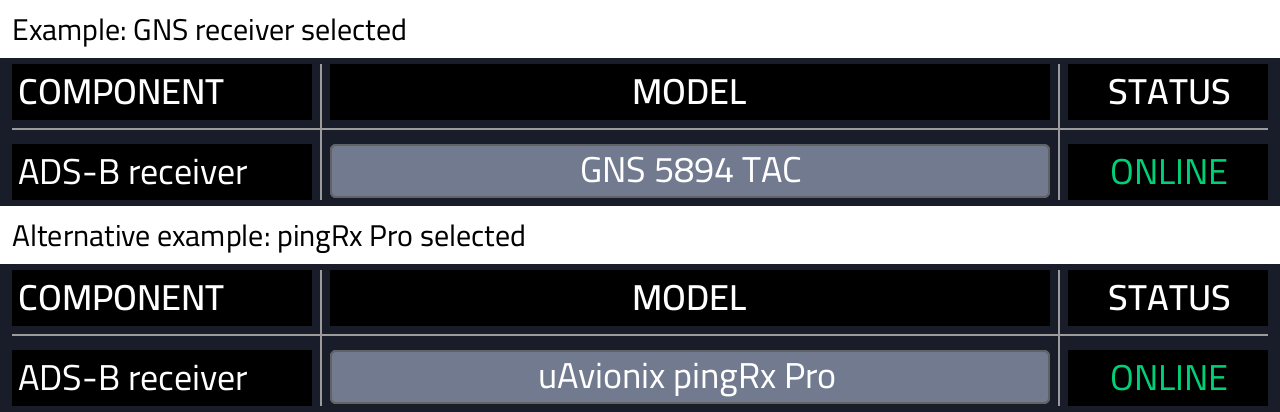
UI illustrations: alternative hardware selections, one at a time. ONLINE is simulated; these images do not establish receiver operation.
For pingRx Pro, detecting its USB converter alone does not establish receiver health: the receiver must send valid messages. For GNS, the application checks receiver responses even during quiet reception. ONLINE can be valid with no aircraft targets. Hardware selection does not enable or disable SafeSky.
15.2. Register the aircraft and enable SafeSky
During the current SafeSky promotion, subscription-free SafeSky access is available to every SD-10 customer through their SD-10 login. This subscription-free promotional access is temporary and will not continue indefinitely. Do not treat it as a permanent subscription-free entitlement.
Connect the PFD to the internet using the Ethernet arrangement from Initial installation, and log in to SD-10. SafeSky registration uses that account’s email; this procedure does not require a separate SafeSky-app login.
Open: MORE / SETTINGS / GENERAL. In the TRAFFIC group:
Set SAFESKY TRAFFIC to ON. If the aircraft is not registered, this opens SafeSky registration. SafeSky account / CONFIGURE also opens the registration for review or later changes.
Confirm Logged-in email, Callsign and Aircraft category. Callsign and category may be prefilled from aircraft configuration; check them for this aircraft. SafeSky’s category selector is a separate choice to verify.
Set ADS-B Out equipped according to the actual aircraft equipment, as explained below. Check any supplied ICAO24 / Mode S hex against the aircraft’s assigned address.
Select REGISTER for the initial registration, or SAVE when changing an existing one. Wait for SafeSky aircraft saved, or the message that SafeSky found and saved ICAO24. Resolve an error before continuing.
Return to GENERAL and confirm SAFESKY TRAFFIC / ON. Successful registration after an ON request enables the feed; if registration was opened through CONFIGURE instead, select ON explicitly. Then check the live source status.
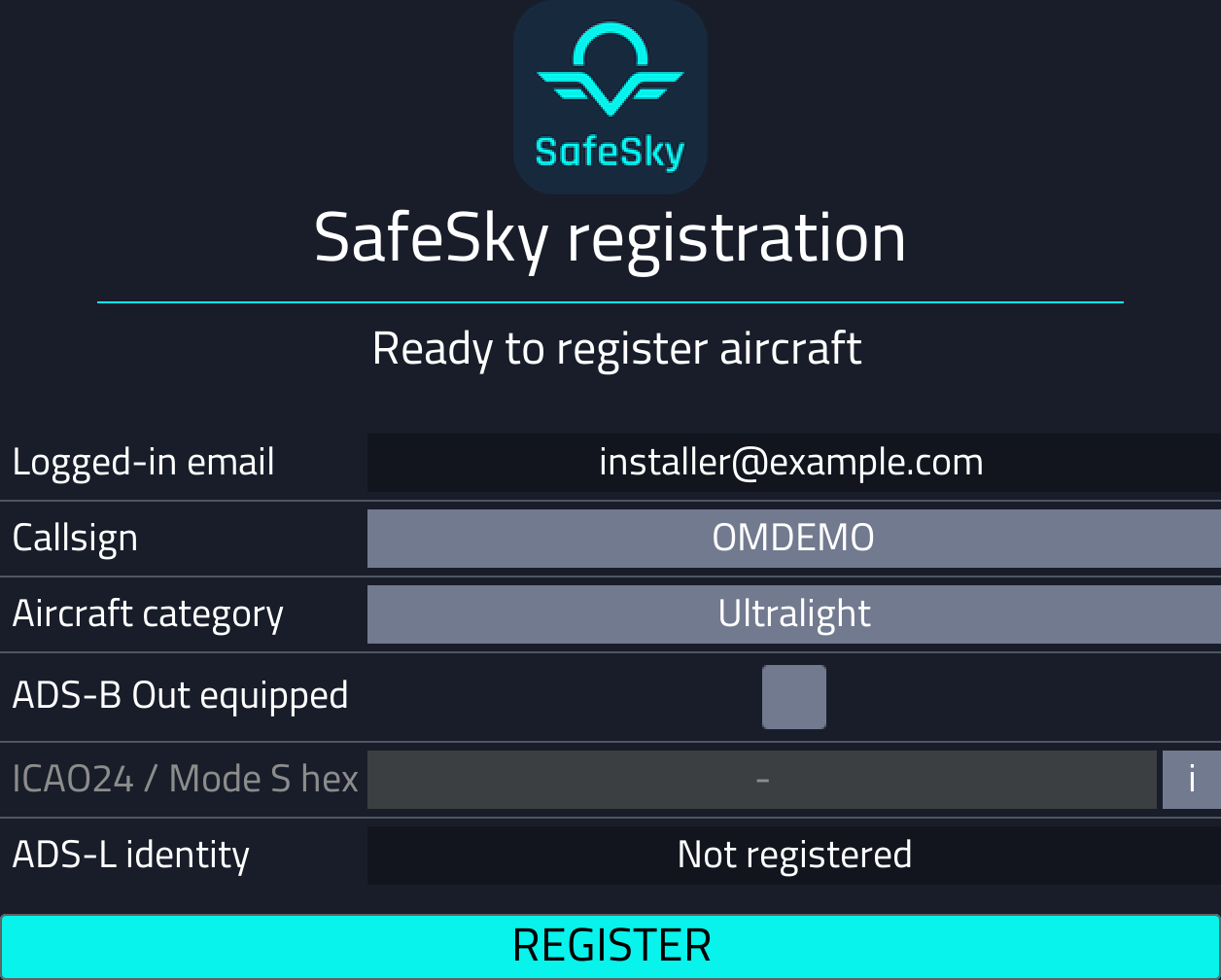
UI illustration: an aircraft ready for registration. Email, callsign and category are fictional examples. No registration or equipment confirmation was performed.
15.2.1. ADS-B Out and ICAO24
Leave ADS-B Out equipped unchecked when the aircraft does not have ADS-B Out. Installing an ADS-B receiver does not make the aircraft ADS-B Out equipped.
Selecting this checkbox opens ADS-B OUT CONFIRMATION. Read the statement about the transponder’s certified GPS position source and responsibility for its transmitted data. Select CONFIRM only when it is true for the actual installation; CANCEL leaves the option unchecked. The application records the confirmation before enabling the checkbox.
After confirmation, SD-10 requests ICAO24 from the configured transponder. ICAO24 is optional: enter the aircraft’s known six-character hexadecimal address if available, or leave it blank if no response is obtained. SafeSky may find and save it from the callsign during registration. Verify any returned address; never invent one to complete the form. The i button explains this field. ICAO24 entry is disabled when ADS-B Out is unchecked.
Registration sends account email and aircraft registration details to the online service. While SafeSky traffic is ON, SD-10 sends the aircraft’s position and flight data as part of the traffic exchange. It needs fresh position, GNSS time, ellipsoid height, ground track/speed and vertical-rate data. An internet connection alone does not establish that this data is ready.
15.3. Check source status and reception
In GENERAL / TRAFFIC, read the separate ADS-B: and SafeSky: status lines. Check every enabled source, even when traffic is already visible from the other source.
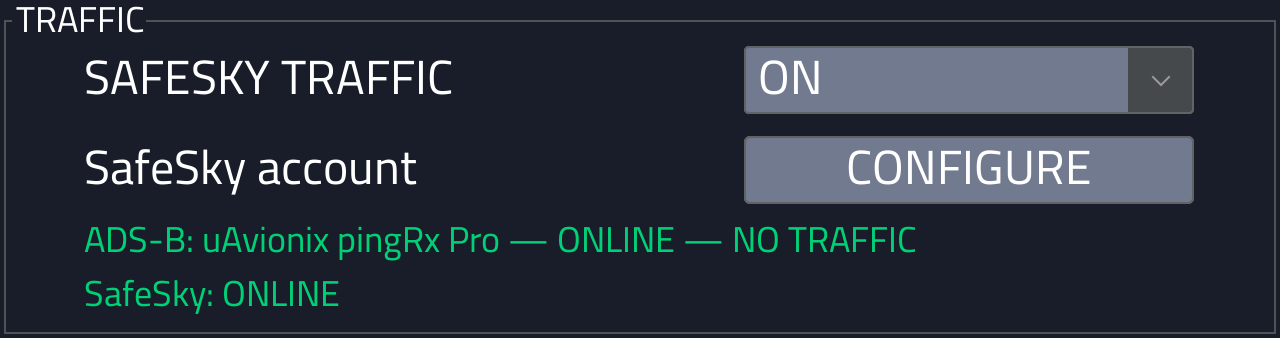
UI illustration: both sources enabled and healthy, with no receiver targets. All statuses are synthetic examples.
Open: MORE / SETTINGS / DIAGNOSTICS / TRAFFIC. TRAFFIC OK means the selected sources are healthy. TRAFFIC DEGRADED identifies an unhealthy enabled source while traffic remains available. Read GENERAL’s separate status lines to identify which source needs attention. If neither feed is available, diagnostics reports the corresponding unavailable reason.

UI illustration: a simulated diagnostic result. This screen has no retry/reset action for traffic; acquisition performs its own connection recovery.
Check the following on the ground:
Confirm the selected receiver and SafeSky ON/OFF choice match the intended installation. Leave unused sources disabled.
Wait for healthy status from each enabled source. No targets in quiet reception is not a fault by itself; ONLINE confirms the source is responding, not that every nearby aircraft is visible.
When receivable traffic is present, check actual targets and their details on the traffic/map display. Receiver communication alone does not verify antenna performance or actual target reception.
After a normal SD-10 restart, recheck the saved receiver model, SafeSky registration/ON setting and live source statuses.
With both sources enabled, SD-10 combines reports with the same aircraft address and gives the current hardware report priority over a matching SafeSky report. An empty list is valid when no positioned traffic is being received.
15.4. Verify an optional MFD
Skip this section for one display. For tandem installations, keep both displays powered with their established PFD/MFD roles and Ethernet LAN connection.
On the MFD, GENERAL / TRAFFIC shows PFD MIRROR. Its source selection is read-only and SafeSky CONFIGURE is absent. The HARDWARE receiver row is also read-only and identifies the PFD’s selected model. Do not configure a second receiver or repeat SafeSky registration on the MFD.

UI illustration: the MFD receiving the PFD’s source statuses. It does not verify actual transfer between displays.
Compare the selected receiver and both source statuses on the two displays. When actual targets are available, compare their identities and positions too; checking only the PFD is insufficient. PFD MIRROR WAITING or PFD MIRROR UNAVAILABLE means the MFD lacks a current traffic snapshot. Check the PFD’s operation, final display roles and Ethernet connection. A green CAN peer status alone does not establish traffic transfer over the LAN.
15.5. Status lookup and later changes
The HARDWARE status cell uses compact receiver codes. GENERAL / TRAFFIC shows the fuller description. Use the code and source together when checking the installation or requesting support.
Status |
Meaning / first check |
|---|---|
ONLINE |
Receiver responding; there may be no current targets. |
N/A |
No hardware receiver selected. Expected for SafeSky-only operation. |
WAITING / INIT |
Connection, source change, mirror wait or pingRx initialization in progress. Allow startup, then read the full status if it persists. |
RETRY |
GNS acquisition is reconnecting. Wait for connection; inspect a persistent state. |
STOPPING |
Previous receiver acquisition has not finished stopping. Wait for completion; seek support if persistent. |
OFFLINE |
Acquisition stopped or PFD mirror unavailable. Check the PFD and relevant connection. |
RX01 |
USB converter open but no recent valid pingRx messages. Check receiver power and its prepared connection to the converter. |
RX02 |
Required pingRx USB converter not found. Check its USB connection. |
RX03 |
Converter found but port unavailable. Check that another process is not using it; seek support if it persists. |
RX04 |
Multiple matching USB converters prevent selection. Have support check the prepared installation. |
RX05 |
pingRx receiver self-test fault. Check receiver condition and power; seek support if persistent. |
RX06 |
Converter/serial acquisition error. Check connection and read the full description. |
RX07 |
GNS acquisition error. Check receiver power/connection and the detailed status. |
RX08 |
GNS did not answer receiver checks. Check power/connection; ordinary absence of aircraft is allowed. |
RX99 |
Missing or unrecognized status. Record the full description for support. |
15.5.1. SafeSky and mirror messages
INTERNET OFFLINE: restore the PFD’s internet connection.
SAFESKY NOT CONFIGURED: complete registration using the SD-10 account.
WAITING FOR RESPONSE / SAFESKY NO RESPONSE: wait for a current reply; check internet and service availability if persistent.
SAFESKY SERVER ISSUE: the online exchange failed; check connectivity and retry after the service/connection recovers.
GPS … MISSING / STALE / NO FIX, IMU …, or VERTICAL RATE MISSING OR STALE: resolve the indicated aircraft-data readiness problem using AHRS/GNSS diagnostics. Internet recovery alone does not resolve it.
PFD MIRROR WAITING / UNAVAILABLE: check the PFD and tandem LAN path.
Receiver connection recovery is automatic. Recheck the actual returned state; a source selection or an open USB converter alone does not prove recovery. With two enabled sources, the healthy source can continue supplying traffic while the other is unavailable; still resolve the degraded source.
15.5.2. Change or disable a source
Choose NONE — NOT INSTALLED in the hardware selector to stop receiver acquisition. Set SAFESKY TRAFFIC / OFF to stop the online feed while retaining registration. These choices are independent and save when selected.
For later SafeSky edits, open CONFIGURE, use the SD-10 account that registered the aircraft, change the required fields and select SAVE. Leaving the form does not save edited registration fields.
Use UNREGISTER only when intentionally removing the aircraft’s SafeSky registration. Confirm the deletion and wait for SafeSky aircraft unregistered; this also disables the SafeSky feed. DELETE PENDING / RETRY UNREGISTER means removal has not been fully confirmed: restore account/service access and retry. Do not assume switching traffic OFF deletes the registration.