
9. AI COPILOT CONFIG
Set which EFIS data the copilot may read and which changes it may propose. For microphone, AI Button, AI Computer and ATC setup, see AI PC. Review permissions on each fitted display before using the copilot.
9.1. Open AI CONFIG and read the tables
Open MORE / SETTINGS / CONFIGURATION / AI COPILOT CONFIG. The screen is titled AI CONFIG. Select a tab and drag to scroll through its groups.
READ ONLY DATA lists information the copilot may use, such as flight data, GPS, traffic, weather and EMS readings. Each row has AI READ.
READ / WRITE DATA lists supported settings and actions, including flight plan, autopilot, avionics and aircraft configuration. Each row has AI READ and AI WRITE.
LIVE VALUE shows the local value, a data status, or details about an action. A value can remain visible when its AI READ box is cleared. Read the status as well as the number. For example, NO_FRESH means the source has no current reading.
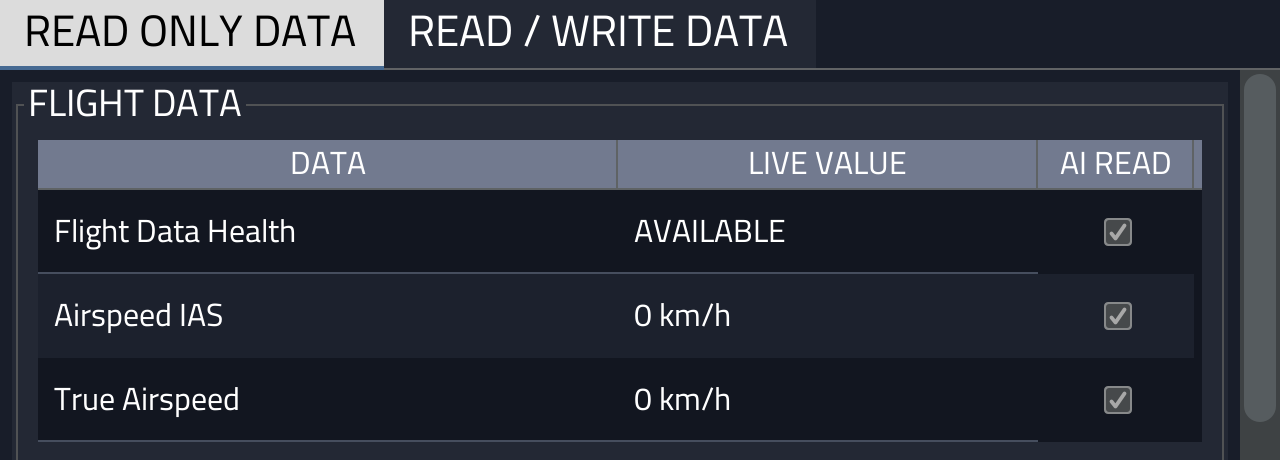
Example live values and checkbox selections.
9.2. Set read and write access
9.2.1. Understand what is sent
AI READ allows the copilot to receive that row’s data. An online Copilot request sends the pilot’s message and a snapshot of permitted EFIS data over the internet. The snapshot can contain permitted values beyond the subject of the question. LIVE VALUE lets you inspect what a row represents before granting access.
Review both tabs when limiting access to a piece of information. For example, Registration appears under both AIRCRAFT / SYSTEM and MY AIRCRAFT, and summary rows can include fields listed separately. Clearing one box changes access for that row. Earlier messages and data can remain in the conversation context.
ATC receive audio, transcription, transcript analysis and callsign matching have their own choices described in AI PC.
9.2.2. Review each proposed change
AI WRITE allows a supported change or action to be proposed. Checking AI WRITE also checks AI READ. Clearing AI READ clears AI WRITE. To allow reading only for a writable row, leave AI READ checked and clear AI WRITE.
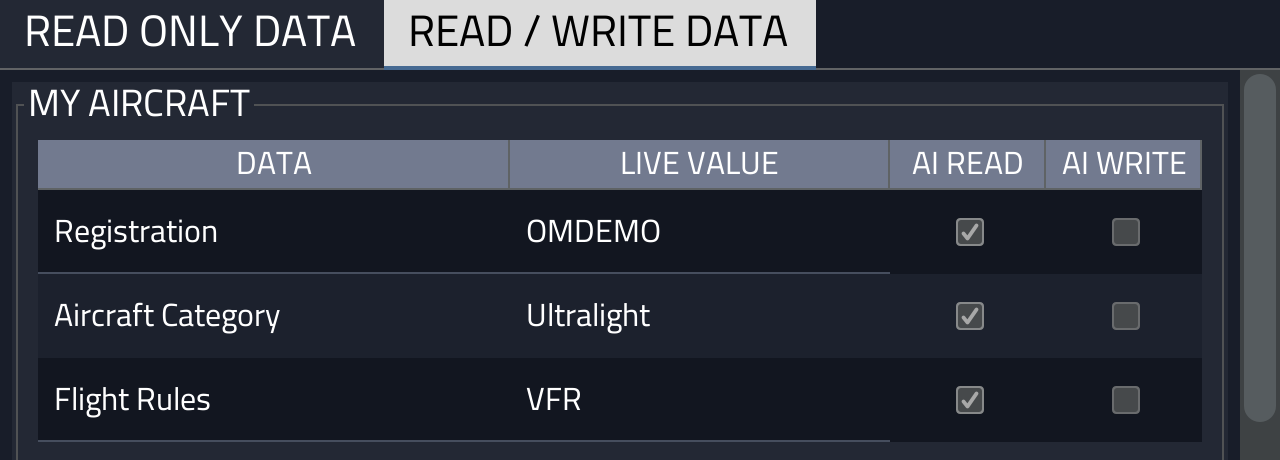
Example selections. See the default settings table for the software defaults.
Granting write access allows the copilot to ask for a change. In the standard Copilot popup, review the proposed action, affected setting and value, then select CONFIRM to apply it or CANCEL to dismiss it. Use the affected screen or instrument to check the result. Some workflows have their own review dialog, such as route replacement. Standard voice commands use a separate path from the Copilot proposal workflow.
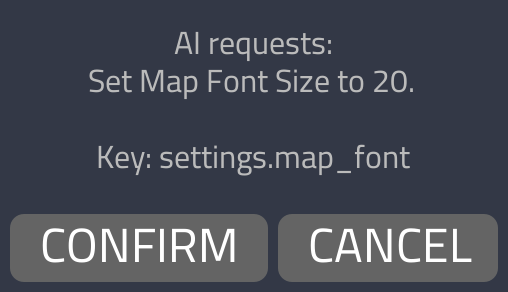
Example proposal awaiting a decision.
9.3. Review the software defaults
AI READ starts checked for every available row in both tabs. The table lists every AI WRITE box that starts checked. Other AI WRITE boxes start cleared. These defaults apply to new permission entries, including rows added on a software update. Existing saved choices are retained. Review the choices for the installation, especially those affecting navigation, autopilot and connected avionics.
Group |
AI WRITE checked by default |
|---|---|
MY AIRCRAFT |
Flight Rules, IFR Approved, Flight Plan Filed, Persons On Board |
MY AIRCRAFT / UNITS |
Airspeed Unit, Vario Unit, Distance Unit, Weight Unit, W&B Length Unit, W&B Weight Unit |
WEIGHT AND BALANCE |
Number Of Seats, W&B Length Unit, W&B Weight Unit |
WEIGHT AND BALANCE INPUTS |
Pilot Weight, Copilot Weight, Rear Left Passenger Weight, Rear Right Passenger Weight, Baggage Weight, Takeoff Fuel Weight, Landing Fuel Weight |
EFIS SETTINGS |
Default FPL Altitude, Traffic Altitude Filter, Map Font Size, Heat Map Visible |
EFIS SETTINGS / AUDIO |
Audio Volume (PFD) |
EFIS SETTINGS / MAP |
Map North Up, Weather Map North Up |
EFIS SETTINGS / DISPLAY |
Automatic Brightness, Manual Brightness Value |
FLIGHT PLAN |
Current Flight Plan, Waypoint List, Add Waypoint, Add Multiple Waypoints, Set Waypoint Altitude, Set Multiple Waypoint Altitudes, Remove Waypoint, Edit Waypoint Parameters, Clear Flight Plan, Mark Waypoint Visited |
NAVIGATION / MAP |
Direct To, Map Center / Recenter, Map Zoom, Traffic Altitude Filter |
RADIO (when configured) |
COM Active Frequency, COM Standby Frequency, Swap COM Active/Standby, Request Radio Data Refresh |
TRANSPONDER (when configured) |
Active Squawk, Passive Squawk, IDENT, Set VFR Squawk 7000 |
FLAPS (when configured) |
Set Flaps Position By Index, Set Flaps Position By Display Value, Retract Flaps One Step, Extend Flaps One Step, Request Flaps Position Refresh |
AUTOPILOT |
Autopilot Engaged, Heading Target, Track Target, Altitude Target, NAV Mode, Heading Hold, Track Mode, Altitude Hold, Vertical Speed Mode (VS), Vertical Speed Target, VNAV Mode |
APP SETTINGS |
QNH Setting, Camera View, AI Conversation |
For example, Registration, Vne - Maximum Speed and the FLAPS / CALIBRATION rows start with write access cleared. Check both groups when a label repeats, such as W&B Weight Unit or Traffic Altitude Filter.
9.4. Verify saved permissions on each display
Checkbox changes save immediately. Reopen AI CONFIG and verify the rows you changed on that display. In a tandem installation, repeat this on the PFD and MFD. Each display stores its own permission selections. The available rows can differ with display role and configured equipment. The PFD includes its permission settings in its server configuration profile. An approved change to a shared setting can still propagate to the other display.
Unable to load AI permissions means the screen could not load or initialize permissions. An online request can fall back to the software defaults when the saved permissions cannot be read. Resolve the error and verify the selections before making a Copilot request.
Unable to save AI permissions means a checkbox can still show the attempted change. Resolve the error, reopen the screen and confirm the intended setting.
If a request is blocked or a value is unavailable, check the relevant box on the requesting display, the data status, the required equipment and the internet connection for online Copilot requests.
9.4.1. Check a read and a write on the ground
Use AI / AI COPILOT and repeat the check on each fitted display. Hold the AI Button while speaking and release it when finished.
Note FONT SIZE under MORE / SETTINGS / MAP and the two permission selections for Map Font Size. Enable AI READ if needed. Ask the copilot for the current map font size and compare the reply with the setting.
If the installation permits a display-only write, allow AI WRITE for Map Font Size if needed. Ask for a different size within the supported range of 10 to 30. Review the proposal, select CANCEL, then reopen MAP settings to confirm the original value is still shown.
Make the request again, review the new proposal and select CONFIRM. Verify the new FONT SIZE and check map labels. Restore the original size and permission selections, then reopen AI CONFIG to verify them.